Resume and PDF
Resume input
Section titled “Resume input”gigai scout resume add accepts .txt, .md and
.markdown files up to 1 MB (the setup wizard’s upload takes the same three
types); a .pdf or .docx resume is rejected (media_type_unsupported).
Convert it to Markdown first:
uvx --from 'markitdown[pdf,docx]' markitdown resume.pdf > resume.mduvx --from 'markitdown[pdf,docx]' markitdown resume.docx > resume.mdThis runs through uv, which you already have, so there is nothing else to
install. If you already have pdftotext (poppler), pandoc or macOS textutil,
those work too. Check the converted resume.md before you import it.
GigAI never stores your name, email, phone, address or links. The import removes your name line and contact lines and stores the resume without them (“We removed your contact lines; you’ll add them when you make a PDF.”), so no model sees them either. It works on patterns and can’t catch personal details elsewhere in the text, so keep those out: see Privacy and security for the limits, including what versions before 0.1.10.7 stored.
gigai scout resume add ./resume.md --json # import + wrap your resume for find-jobsThe picked resume and the PDF
Section titled “The picked resume and the PDF”Tailoring is switched off in 0.1.11. The resume for a job is picked from your master, word for
word: the assessment picks the lines, and GigAI checks that the lines it shows are lines you wrote
(see How accurate is the picked resume). The job page shows it, with what
was picked and what was left out; gigai scout resume pick --job-url <url> prints it.
gigai scout resume tailor is still there and answers tailoring_off (no model call) unless the
background pipeline was explicitly enabled in the settings; POST /api/tailored-resumes is the
same switched-off step.
Every line comes from your resume, answers or stories. Read it before you send it.
A pick holds your best lines for the job, at most 20 points, and it does not count pages:
you fit the page yourself with the spacing slider beside the preview on the job’s page, which
says how many pages the resume prints on (“2 pages”, or “3 pages” when it runs over). The
lines that back a must-have requirement of the posting are kept first, then the lines you
pinned; the lines past the 20 are left out, and you can add one back. A pick is never cut to
fit a page count, and a resume that prints on 3 pages is not held back for it. To get to 2
pages, move the spacing slider left; if the tightest spacing is not enough, remove a point on
the job’s page (resume pick --shorten is retired: it changes nothing and says so). A resume picked before
0.1.11.5 stays as it is until you pick it again (Re-pick on the job’s page, or
gigai scout resume pick --job-url <url> --refresh).
No employer is dropped. A role none of whose lines is shown (an older role, usually) is still
listed, on one line, under Earlier experience at the end of the Experience section, newest
first: Senior Full Stack Developer, Example Agency | Feb 2016 - Jan 2017. The title, the
employer and the dates are your master’s own. With three such roles or fewer the PDF prints their
lines right after the last role, with no “Earlier experience” title; with four or more it keeps
the title.
The PDF sets four blocks to leave room for your points, and changes none of their words: the Summary is a plain paragraph; a degree is one line (school, degree, years at the right); the Skills are plain comma-separated lines, four at most, with what the posting asks for first and no skill twice. A Skills list too long for four lines is first set a little smaller; if it is still too long, the skills at the end of the list are not printed (your master keeps them all).
A degree with a long name stays on one line when it can: the degree’s name is set a little smaller (the school and the years are not). When that is not enough, the years go to a second line. A project’s line of technologies is set on the project’s title line when both fit.
Where a page breaks. A role or a project can run on to the next page: it breaks where the page ends, between two points. Its heading (the employer and role lines, or a project’s title) stays with its first point, so no heading ends a page. A point of up to four printed lines is never cut in two; a longer one can break, with at least two lines on each side. A section title stays with the first block under it. And no page holds only Education, only the Skills or only the roles listed by their heading: when they end the resume, the last point before them moves to that page with them, at every spacing. For that the page before the last can end a few lines early.
The preview and the spacing slider
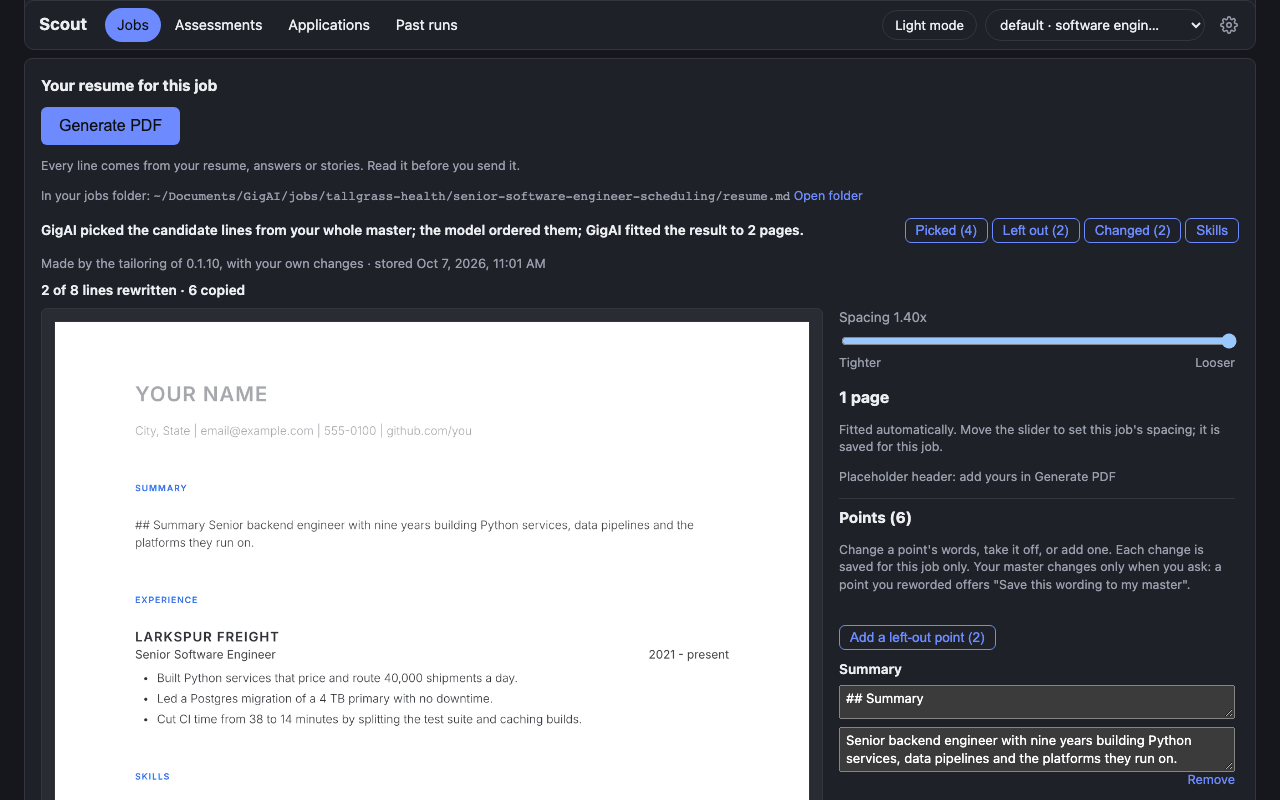
Section titled “The preview and the spacing slider”The resume card on a job’s page has one view: the resume as the PDF prints it, one picture a page, with the controls beside it. There is no other view to switch to.
- Spacing is one slider, from 0.70 (“Tighter”) to 1.40 (“Looser”). It changes the gaps and,
below 1.00, the line height; it never changes the type size. Until you move it the page says
“Fitted automatically. Move the slider to set this job’s spacing; it is saved for this job.”
After a move it says “Saved for this job. Generate PDF uses this spacing.” There is no Save
button, and the spacing of one job changes no other job.
gigai scout resume pdf --job-url <url>uses the same spacing. - The page count is beside the slider and follows every change: “2 pages”. When the resume runs over, it says “3 pages” and “Move the slider left to reach 2 pages.” At the tightest spacing it says so: “This is the tightest spacing: the resume does not reach 2 pages. Shorten it, or keep it at 3 pages.”
- The header. The preview always shows a header, so the page count is the one your PDF will have. With a header file that has your name, it is yours, and the page says “Showing your header from header.json”. Without one it is a grey “Your Name” with the line “Placeholder header: add yours in Generate PDF”. The placeholder is never in a PDF. While the Generate PDF form is open with a name in it, the preview shows what the form holds.
- Generate PDF, at the top of the card, makes the PDF with the spacing you see. The preview and the PDF are the same render.
While new pages are made the old ones stay on screen (“Updating the preview”).
The Points list
Section titled “The Points list”Beside the preview, Points (N) lists the Summary and each role’s bullets as the resume prints them, each in a box under its role. Every change is saved at once, for this job’s resume only: the page says “Saved for this job. Your master is unchanged.”, the preview is made again and the page count follows.
- Change a point’s words. Type in its box. Enter, or clicking out of the box, saves it; Shift+Enter is a new line and Escape puts the words back. A point is at most 400 characters and cannot be empty, or hold a name or contact details. A point you changed is marked Your words.
- Remove takes the point off this resume. It is not lost: it is then first in its role under the left-out lines, with Put back.
- Add a left-out point (N) opens “Left out of this resume: add one”: the lines of your master this resume does not show, by role, each with Add. N is how many there are. With 8 or more there is a search box. When every line is already on the resume the button reads “Nothing left out”. An added line never pushes another one off: you fit the page with the slider. There is no box for a point typed from nothing: add a line, then change its words.
- Save this wording to my master appears on a point you reworded, when its words differ from the master’s. It opens a confirm under the point: “Your master says now” with the old wording, “It will say” with the new one, and two buttons, Change my master and Cancel. The master changes only on Change my master, and only that one line. This job’s resume already has the words; other jobs take the new wording on their next pick. If your master changed after the page read it, nothing is saved and the page shows the master as it is now.
Nothing else on this card writes to your master: not an edit, not a Remove, not an Add.
A resume that was not picked from your master (a profile on a resume you put in by hand) has no Add or Remove: “its points can be reworded here, not added or removed.”
Above the preview, Picked (n), Left out (m) and Skills list the same lines with the reason each is shown or not, and Changed (k) lists the points whose words are not the master’s, each with Restore, which brings the master line back.
A new resume that waits
Section titled “A new resume that waits”A resume you edited is never replaced by a new pick. When there is a newer pick for the job (you pressed Re-pick, or the job was assessed again), it waits beside yours, and the first line of the card says so:
A new resume is ready for this job. Yours stays as it is until you take the new one.
- One sentence says what it changes, for example “It adds 2 lines and leaves out 1 line this resume prints.” Compare lists those lines.
- When you edited points, the card names them: “Using it replaces the resume you edited. It would drop your edited points:” and the list.
- Use it replaces your resume with the new one. Dismiss keeps yours and drops the new one.
Under the Re-pick · no model call button of a resume you edited, the page says: “You edited this resume: a new pick will wait beside it, yours stays until you use it.”
A line your master changed
Section titled “A line your master changed”When you retire or reword a master line that this resume prints, the card names the line by its words and offers the fix that needs no model call first:
- “Stale: a line this resume prints was retired from your master: “…”” with Remove it from this resume.
- “Stale: a line this resume prints was reworded in your master: “…”” with Use the new wording.
The other choice is under it: Re-pick · no model call, or Re-assess · 1 model call when the assessment itself is old. “Nothing refreshes by itself.”
Where the file is
Section titled “Where the file is”The card also says where the file is (“In your jobs folder:”, with Open folder). Each job’s resume (markdown) is saved in the job’s own folder of your jobs folder
(~/Documents/GigAI/jobs unless you chose another with gigai scout jobs-folder --set PATH):
<company>/<role>/resume.md, for example thrive-market/staff-software-engineer-fullstack/resume.md.
Two roles at one company are two folders, and no name holds a date. The folder never holds your
name or contact details, and never a PDF. A resume.md you change there stays yours; Scout
replaces only what it wrote itself and writes a newer resume beside yours as resume-2.md.
Files that an earlier version put in your resumes folder (<company>-<role>-<date>.md) are
left where they are. To copy them into the new layout, once:
gigai scout jobs-folder migrate --dry-rungigai scout jobs-folder migrateThe dry run lists every copy and writes nothing. The company and role come from the stored job,
not from the file’s name. The old folder is left exactly as it was (it is a legacy place for job
resumes now); master.md and the PDFs stay there. A file you edited is copied as yours and is
never replaced. A file with no stored job, or one that holds contact details, is listed and not
copied. A second run copies nothing. gigai scout status says so in one line while old files
still wait.
Generate PDF opens a small form: name, email, phone, location, your GitHub id, your
LinkedIn id, a website and one more link. Fill what you want printed and press Generate PDF. The values go
into that one PDF and are dropped: GigAI does not save them, so you type them
each time (your browser may offer to autofill them). The file is named
<company>-<role>-<date>.pdf, never after you.
Your header file
Section titled “Your header file”To skip the typing, keep your details in one JSON file that you own. Scout fills the
Generate PDF form from it each time the form opens: the form says “Filled from
~/Documents/GigAI/header.json”, and you can still edit any field before you generate.
The file goes beside your resumes folder, not inside it (that folder never holds contact
details): ~/Documents/GigAI/header.json (a GigAI home other than ~/.gigai:
<home>/header.json). An example with made-up values:
{ "name": "Jane Example", "email": "jane@example.com", "phone": "555-0100", "location": "Springfield, IL", "github": "octocat", "linkedin": "octocat", "website": "example.com", "work_authorization": "VISA: H1B"}github and linkedin are the short form: just your id. The PDF prints
github.com/octocat and linkedin.com/in/octocat, each a clickable link. The older form, a
links list, still works, alone or beside the short form:
{ "name": "Jane Example", "links": [ {"label": "GitHub", "url": "https://github.com/octocat"}, {"label": "LinkedIn", "url": "https://www.linkedin.com/in/octocat"}, {"label": "Talks", "url": "example.com/talks"} ]}- Every field is optional (a PDF made from the command line needs the name). Each value is
one line of at most 200 characters;
linksholds at most 6 links. - The form has a field each for GitHub, LinkedIn and Website.
github,linkedinandwebsitefill them. So does alinksentry that is your GitHub or LinkedIn profile address (the form shows the id alone) or one labelled Website. Every other link gets a field of its own under its label. The PDF prints each link’s address in the contact line. - The PDF header is your name and ONE line under it: location | work authorization | links | email | phone. A field you leave empty leaves no gap. A line too long for the page is set in slightly smaller type first, and wraps only when that is not enough.
githubandlinkedintake just your id (github.com/<id>,linkedin.com/in/<id>); a full address works too.websitetakes a site address. Each prints withouthttps://orwww.and is a clickable link. A link named both here and inlinksprints once.work_authorizationprints in that line exactly as you wrote it. Leave the key out and it starts from your profile’s sponsorship answer; set it to""to leave it out.- What prints is decided in this order: what you edit in the form, then the file, then the profile’s sponsorship answer.
- Scout reads the file only to fill the form, to show your header in the resume preview on a
job’s page, or to make a PDF with
gigai scout resume pdf, and writes it only when you press the Save button described below. The preview shows it to your own browser only, as page pictures: an agent that asks for the preview gets a grey placeholder header (“Your Name”) instead, and so do you until the file has a name. The placeholder is never in a PDF. It is never copied into GigAI’s store, a log, a record, a suggestion, a job brief, the resumes folder or a model prompt, and Scout’s agent API does not return it. - Keep it to yourself:
chmod 600 ~/Documents/GigAI/header.json. The form and the command say so when other users of the computer can read it. - A file that is missing, cannot be read or is not valid is one plain line in the form (what is wrong and where the file goes); you can still type the values.
Save these details. You do not have to write the file by hand. Type your details in the
Generate PDF form and press “Save these details to ~/Documents/GigAI/header.json” (the
button shows the real path). Scout then writes the file, once, with what is in the form:
- Only on your click. Opening the form, typing and generating a PDF never write it.
- It writes the short form:
"github": "octocat","linkedin": "octocat"and"website": "example.com"for the fields you filled. A full address typed in the GitHub or LinkedIn field is saved as the id.linksholds only your other links. A field you left empty is left out of the file;work_authorizationis the exception (""means no line). - The file is yours alone (mode 600) and is written whole or not at all: if the write fails, the file you had is still there.
- A file that is already there is never replaced without asking. The form says “Replace the existing header.json?”; Cancel leaves your file as it was.
- The form shows the path it wrote. If the folder is missing or cannot be written, it says
so in one plain line.
~/Documents/GigAIis created when it is not there yet; no other folder is. - The details go into that file and nowhere else: not GigAI’s store, a log, a record, a job brief, the resumes folder or a model prompt. An agent cannot use the button: the server answers Scout’s own page only.
Placeholder values. If you start from a template, any value that still starts with
REPLACE (for example "REPLACE: your phone") is skipped, and so is an empty value:
neither fills the form nor prints in a PDF.
- A file that holds nothing but placeholders fills nothing. The form says “header.json still has placeholder values: replace the REPLACE: fields (or save your details here)”.
- A file with some real values fills those, and the form lists the fields it skipped (their names only).
- A name that is missing or still a placeholder is flagged: “header.json has no name yet”.
The form still needs a name before it generates, and
gigai scout resume pdfstops with that same plain sentence instead of making a PDF without your name.
A skill the posting asks for that your resume does not name, and that one of your answers says you have, is added to Skills with that answer as its source. An answer that says you do not have it adds nothing.
Older resumes only: “Cut for length”. A resume picked before 0.1.11.5, or made by the
tailoring step (switched off by default, see above), was cut to 2 pages when it was made:
whole roles were left out, the oldest first. Such a resume still shows what was left out
(“Cut for length: …”) with Restore, which puts all of it back in one step
(gigai scout resume length --job-url <url> --restore, or PUT /api/tailored-resumes/length).
A resume picked on 0.1.11.5 has no such line: nothing is cut from it for length. Pick an older
resume again to get the new pick.
The background pipeline is off by default in 0.1.11, so nothing is tailored by itself. A home
whose settings explicitly enable it keeps the 0.1.10 behaviour: it never replaces a resume you
made or edited. A resume you edited is replaced only when you take the new suggested one
(gigai scout resume pick --use-proposed).
A line can also carry your own wording without the page: an agent (or a script) sets it with
PUT /api/tailored-resumes/lines and "use": "custom". The point is then marked
Your words in the Points list, like one you typed. It cites no source, because the text
is yours. Restore on the Changed tab brings back the master line. A text that looks like a name line
or a contact detail is refused: GigAI stores none of those.
gigai scout resume pdf renders a PDF without the UI: --job-url <url>
for a job’s stored resume (--tailored --job-url <url> is the older spelling of the same), or --in resume.md for resume markdown of your own
(POST /api/resume/pdf over the API). Both run on this computer only, with no model
call. A PDF made this way has no name and no contact details. The command prints an
“Open in Scout” link: open it, fill the Generate PDF form in your browser, and download
the finished PDF. For agents has a
worked example and the markdown format.
With your header file the command makes the finished PDF itself, without
the browser: pass --out FILE and the header is filled from ~/Documents/GigAI/header.json
(or from --header FILE). A PDF with your details is written only to --out, never to the
resumes folder; without --out the PDF has no header, as before. --no-header makes it
without one.
gigai scout resume pdf --job-url https://boards.greenhouse.io/acme/jobs/1 --out ~/Desktop/acme.pdfgigai scout resume pdf --in resume.md --out resume.pdf --header ~/Documents/GigAI/header.jsonWorking on one job’s resume with your agent. GigAI does not reword a resume. Your agent
reads the job’s brief (gigai scout resume brief --job-url <url>, and --posting for the
posting, a separate call), changes the wording with you, ends each changed line with the master
lines and answers it comes from, and hands the resume back
(gigai scout resume store --in edited.md --job-url <url> --as agent). GigAI checks it in code
against your master resume, your answers and your stories, and stores it or refuses it line by
line. This check is a guard on numbers, names, ownership, entries and sources. It does not prove
that a reworded line is true: read every changed line before you send the resume.
For agents has the five steps.
The master resume
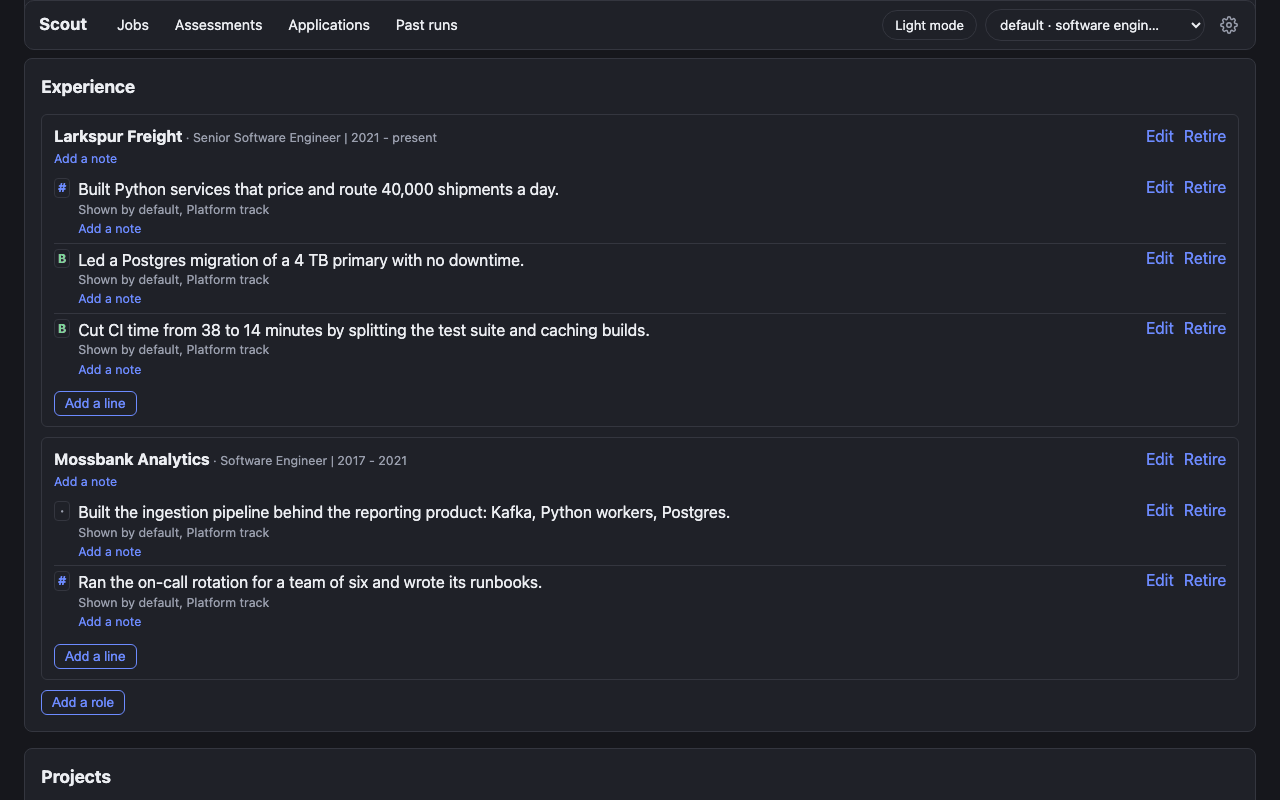
Section titled “The master resume”A master resume is one document that holds everything: every role, bullet, project and skill you have, with an id on every line and no name or contact details. A profile shows a selection of it, and a resume tailored for one job is picked from all of it, so a line you add once is there for every profile and every job.
Make it. Settings > Master resume (#/master), or gigai scout resume master init. Scout merges the resumes your profiles hold: every line once, the newer wording
kept where two say the same thing. Where two resumes word one line with different
numbers it asks which is right (A, B, or both) and writes nothing until you answer. Each
profile keeps showing the resume it shows now, so nothing already assessed changes.
Change it. The Master page lists the master by role. Add a line under a role, edit
one, retire one, add a role. A line the master already has in other words is not added
at once: the page shows the line it looks like, and you edit that one or choose Add it
anyway. A retired line is never selected again; History lists what is retired and
puts it back. Each line shows how strong its evidence is: backed by a story or an answer,
states a number, or stated. Only your own facts belong here; an agent writes with
gigai scout resume master add, edit and remove (see For agents) or
through the API (POST and PUT /api/master/lines), under the same rules, and sends the
revision it read, so a change that crosses yours is refused instead of overwriting it.
Personal-lab lines. Something you built to learn, never production, goes in with gigai scout resume master add --entry ENTRY_ID --text "..." --lab --when "Oct 2026" (or --skill NAME --lab --when "Oct 2026"). The line ends
“(personal lab, Oct 2026)” and a skill is listed as “NAME (lab)”. A lab line that says operated, owned,
production, at scale, led, managed, years, a team size or customers is refused, naming the word. A lab line
never settles a requirement as met by itself (it can support “met” only on a familiarity or hands-on
requirement), and gigai scout resume brief shows it with a lab mark.
Education. A resume picked from the master prints your education only when the master
holds it. When it holds none, Scout says so: “Your master has no education” on the Master
page (with Add education, which opens the form for a school), on a job’s resume card when
that resume prints none, and in gigai scout resume master show. From a terminal, add it with
gigai scout resume master add --heading SCHOOL --role "DEGREE | YEAR" --section education.
When master init reads a resume whose lines look like education (a degree with a school and
a year, or a line that is only the word Education inside another section) and none of them
became an Education entry, it says which lines, by number, and which section holds them. It
moves nothing and never makes up an entry: the lines stay where it read them until you add
the degree yourself.
The file. Your master is also a file you can open: master.md in your resumes folder
(~/Documents/GigAI/resumes unless you chose another in Settings). Scout writes it again
after every change of the master. Edit it in your own editor, then import it: Import the
file on the Master page, or gigai scout resume master sync. A line you typed gets an
id, every other line keeps its own (leave the <!-- id:... --> comments as they are; a
deleted one comes back when the line’s text is unchanged), and a line you removed is
retired and can be put back from History. Scout never reads the file by itself:
until you import it, the Master page, gigai scout status and gigai scout resume master show say “master.md has changes not imported yet”. It never replaces a file you changed
either: a change made in Scout or by your agent meanwhile is written beside it as
master-2.md. An import is refused, and your file left as it is, when the file does not
read as a master (the line is named), when it holds a name, an email, a phone number, a
link or an address (Scout stores no contact details), and when the master changed since
the file was written; Import it anyway (--revision N) then imports your file as it
is, and what was added since is retired.
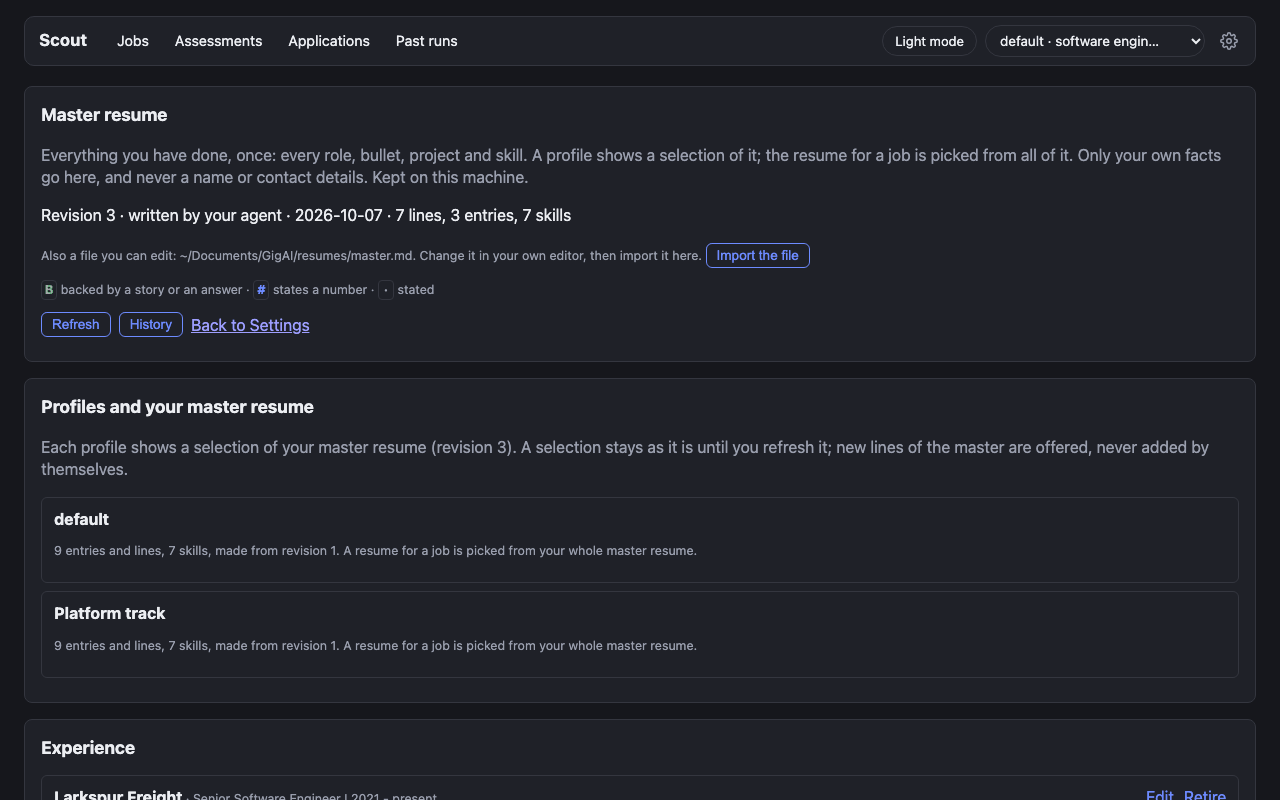
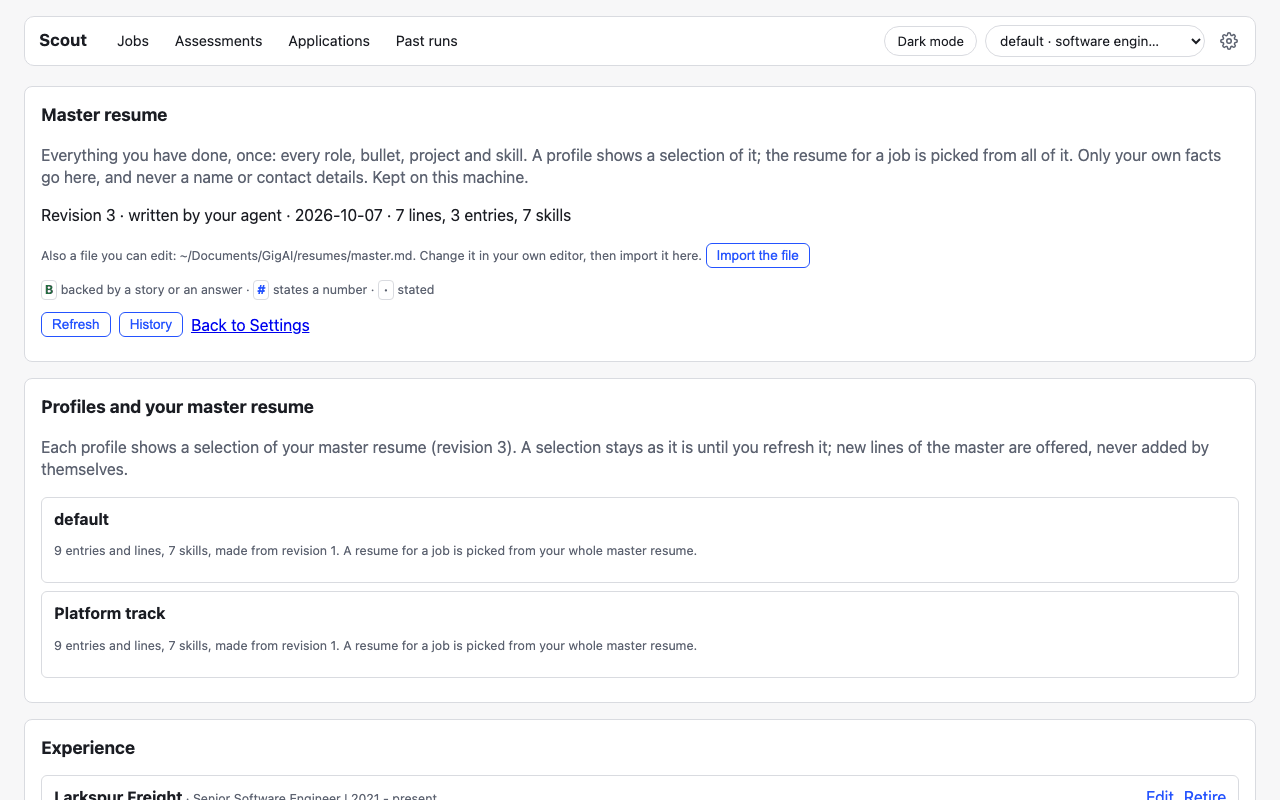
Profiles. A profile’s selection stays as it is until you refresh it. When the master gains lines, the profile says so (“3 new master lines: refresh?”) under Settings > Profiles and on the Master page; Refresh selects again from the whole master, by code and with no model call, and makes the result the profile’s resume. When you edit or retire a line a profile shows, its resume follows by itself.
One job. With a master stored, a profile’s resume for a job is picked from the whole
master, also for a profile that has no selection yet. The one exception is a profile whose
resume you replaced by hand after its selection was made: its jobs’ resumes are made from
that resume. The line above the resume on the job page says where it came from, for example
“Picked by the assessment from your master (revision 5) · 20 lines · 2 pages”, and each
profile’s line on the Master page and in gigai scout resume master selection status says
which of the two that profile uses. A resume picked from the
master shows Picked (n) and Left out (m)
on the job page, every line with the reason it is shown or not. Remove takes a line
off this job’s resume; Add puts one on, and nothing is cut to make room: the page count
beside the preview says where you are, and the slider is yours. A point you reworded offers
Save this wording to my master: Scout shows what your master says now and what it will
say, and Change my master changes that one master line; nothing else in the master
changes (The Points list).
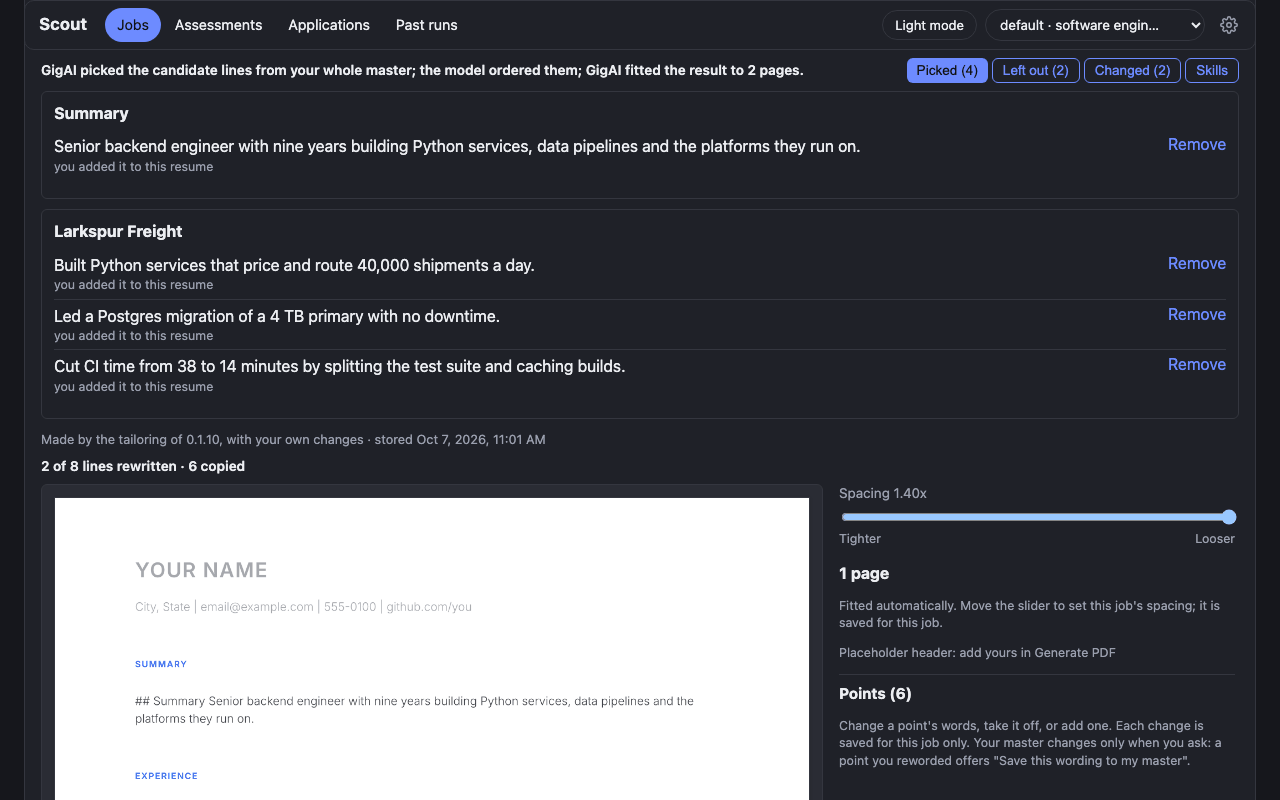
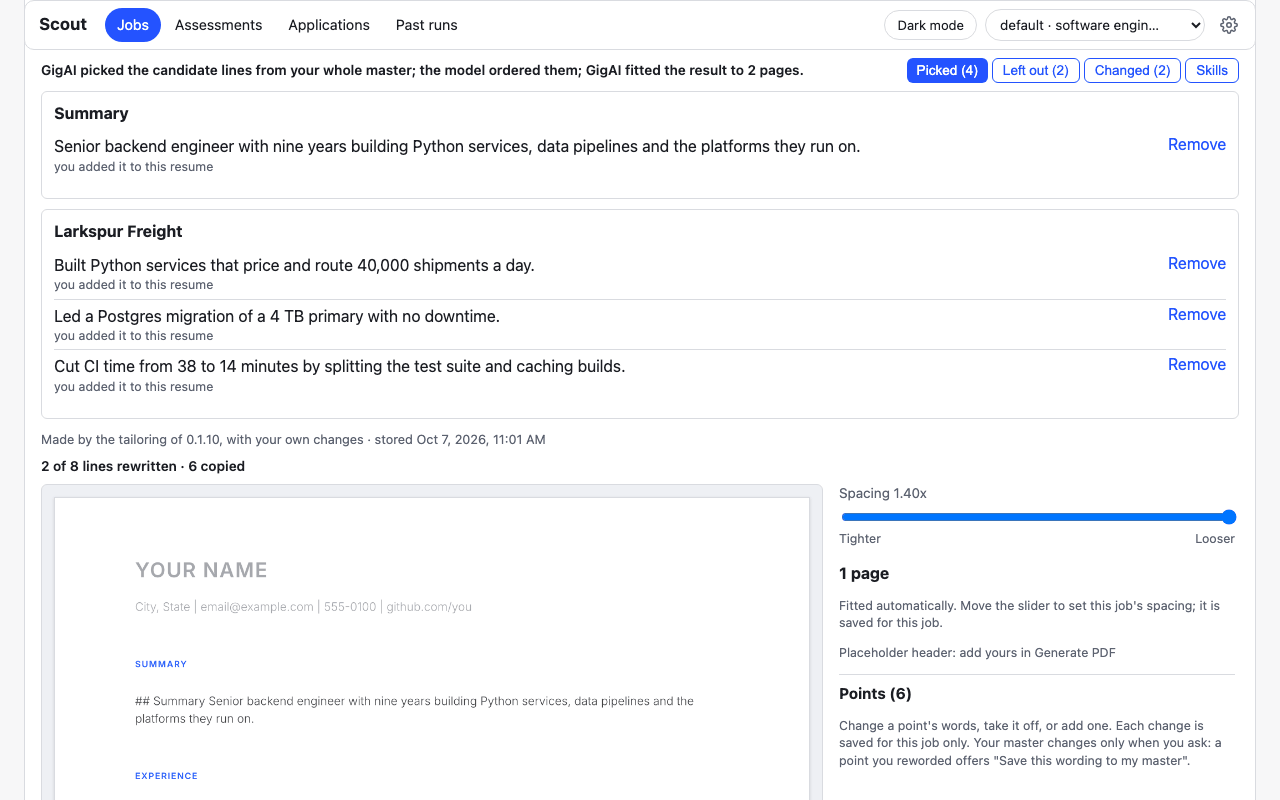
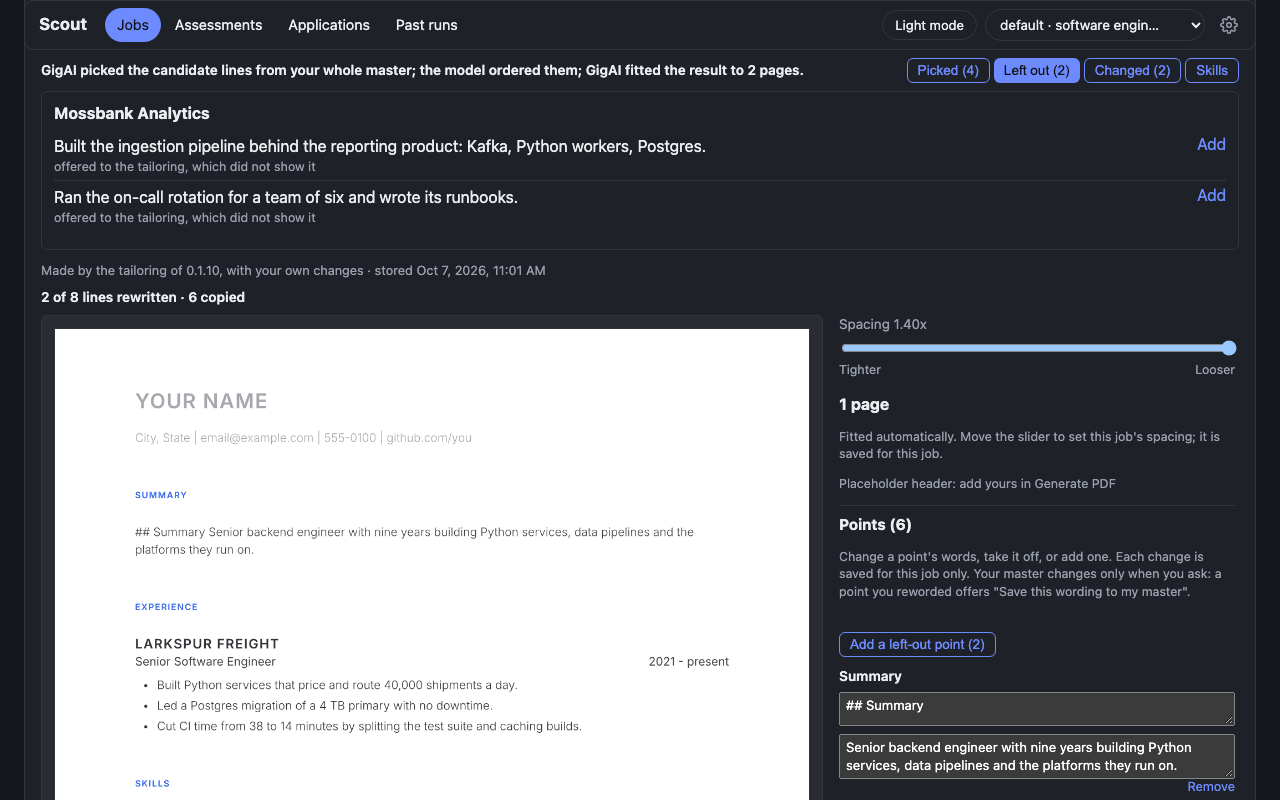
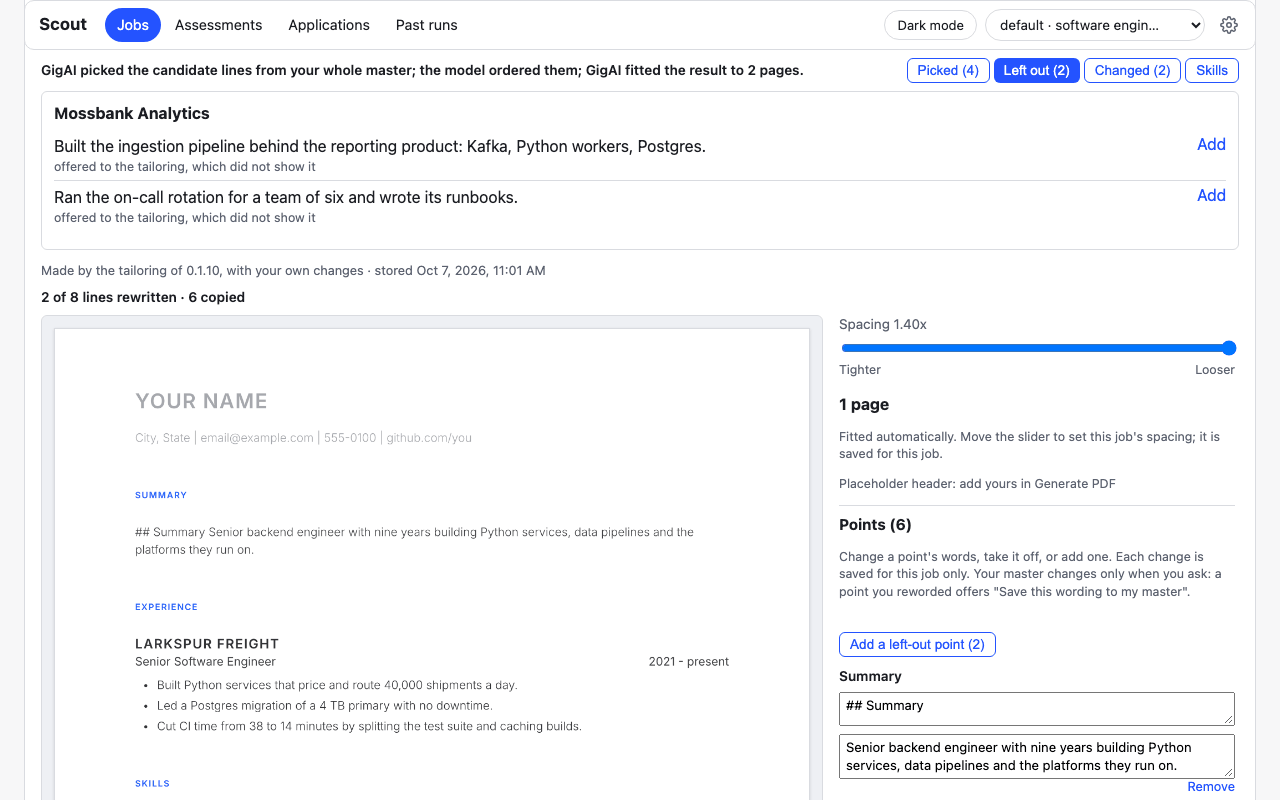
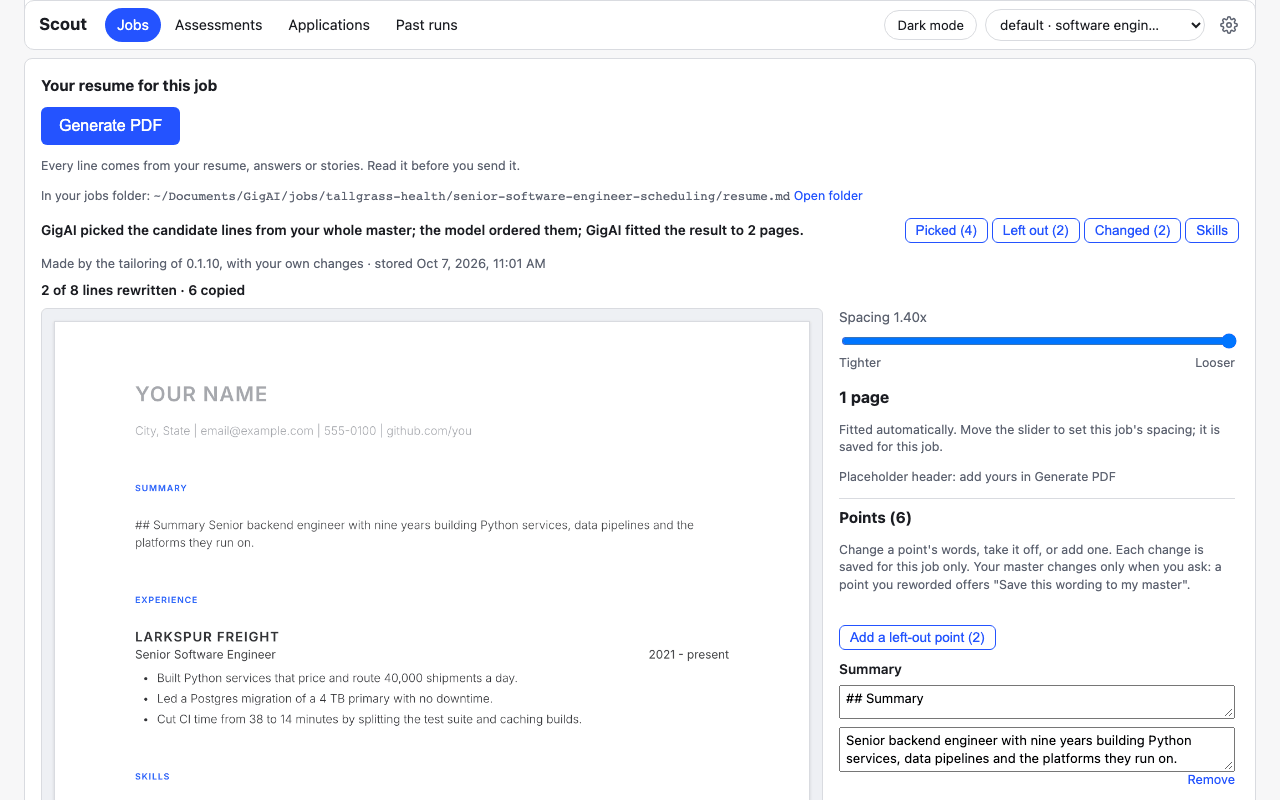
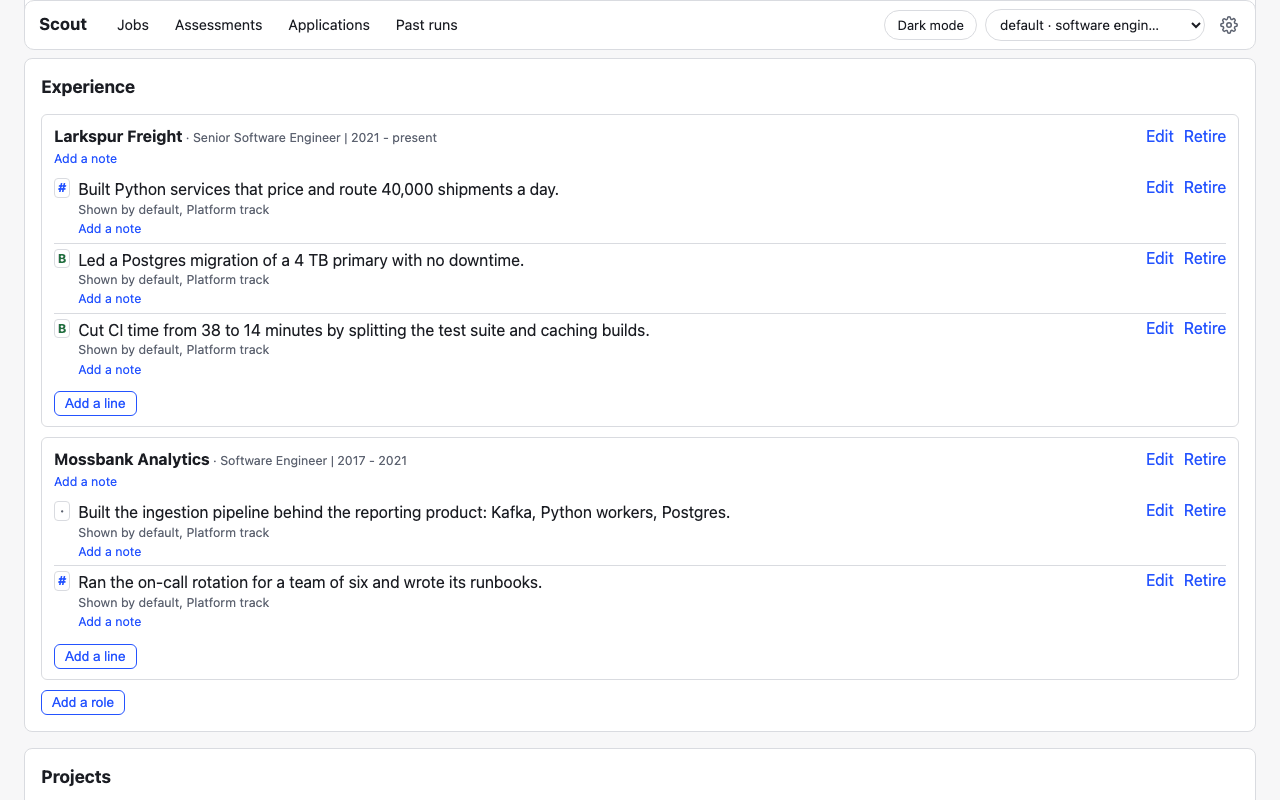
The companies, postings and person in these images are made up, and no model wrote the resume in them: the build uses a fixture in place of a model, whose resume is a few lines, has an odd “## Summary” point and is labelled as made by the older tailoring step. The four lines under Picked were added with Add, which is why each says “you added it to this resume”; a resume picked by an assessment gives the reason each line was picked.
Resume display
Section titled “Resume display”Under Settings > Profiles, Resume display holds the title printed under your name and the PDF layout (spacing, auto fit). They are stored only on your computer, never sent to a model, and added to the PDF locally. It no longer holds a name or a contact line: those are typed in the Generate PDF form for one PDF.
A spacing you set with the slider on a job’s page is used for that job instead, on the page
and in gigai scout resume pdf --job-url <url>. This setting applies to jobs with no spacing
of their own, and to resume pdf --in.
The PDF renderer is Typst; see Known limitations for the platforms it does not support.